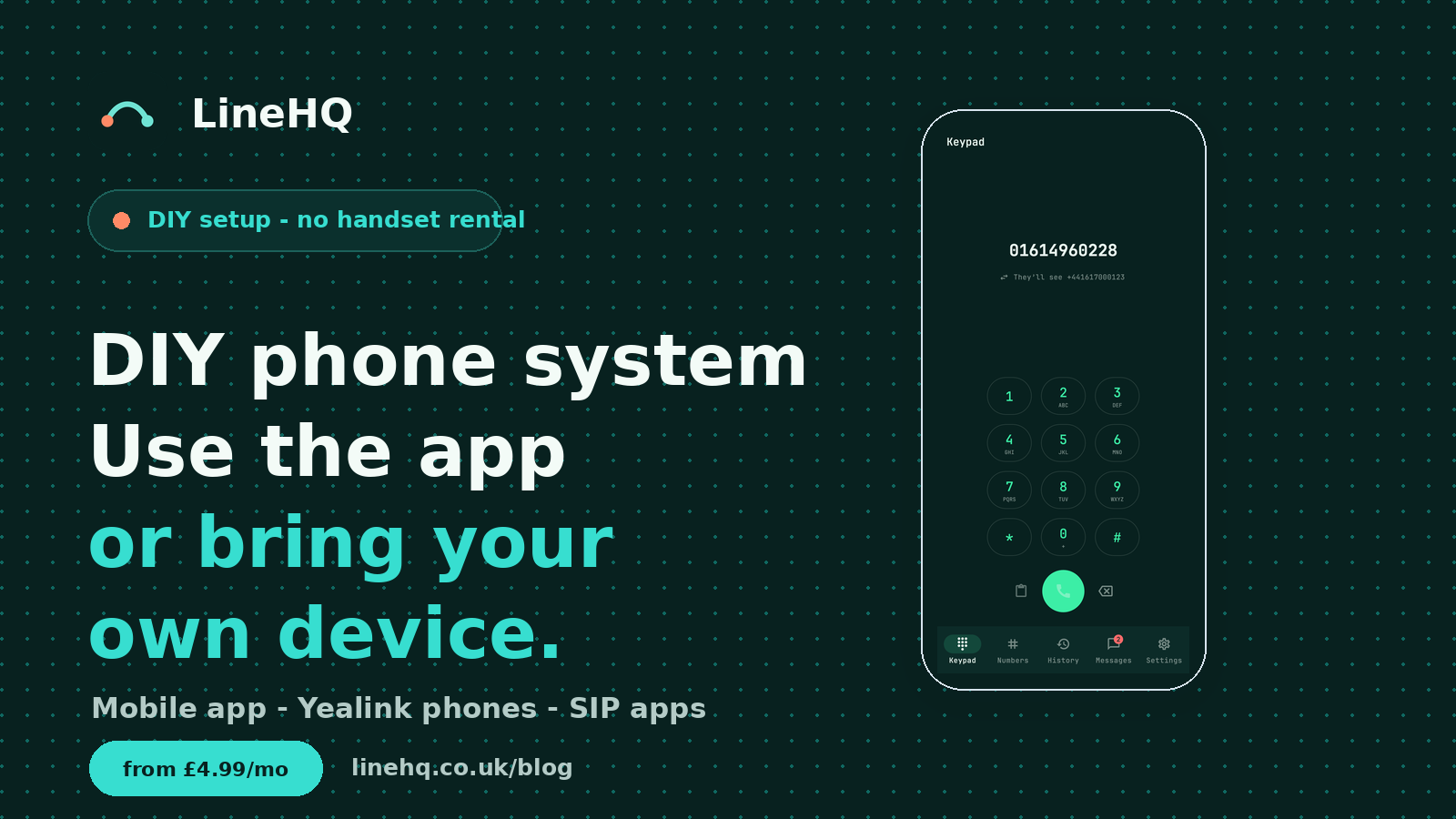
A DIY phone system should let you choose how you answer calls, what device you use, and how quickly you can change things when the business changes. You should not have to rent handsets for years just to get a professional business number.
With LineHQ, there are two practical ways to build that setup: use the LineHQ mobile app, or bring your own device through the Devices tab in your account. Both routes let a small business keep control without being tied into a long hardware contract.
What a DIY phone system means
A traditional business phone system often starts with rented desk phones, engineer visits and fixed contract terms. That can make sense for larger offices, but it is more than many small businesses need.
A DIY phone system is lighter. You choose a UK business number, decide where calls should ring, and use your own phone, app or compatible VoIP handset. The important part is that the number and call handling stay with the business, while the equipment is something you control.
That makes it useful for tradespeople, clinics, small offices, remote teams and start-ups that want a proper business phone setup without buying into a full office PBX package.
Option 1: use the LineHQ app
The simplest route is the LineHQ Android app. Download it from Google Play, sign in, and use your LineHQ account from your phone. The iOS app is not public yet, so iPhone users should use normal forwarding or a compatible SIP app for now.
The app is designed for the everyday jobs: seeing your numbers, calling out when Professional Calling is enabled, checking call history, reading messages and keeping work calls separate from your personal mobile number. It is the best first option if you want a business phone system that works from your pocket.
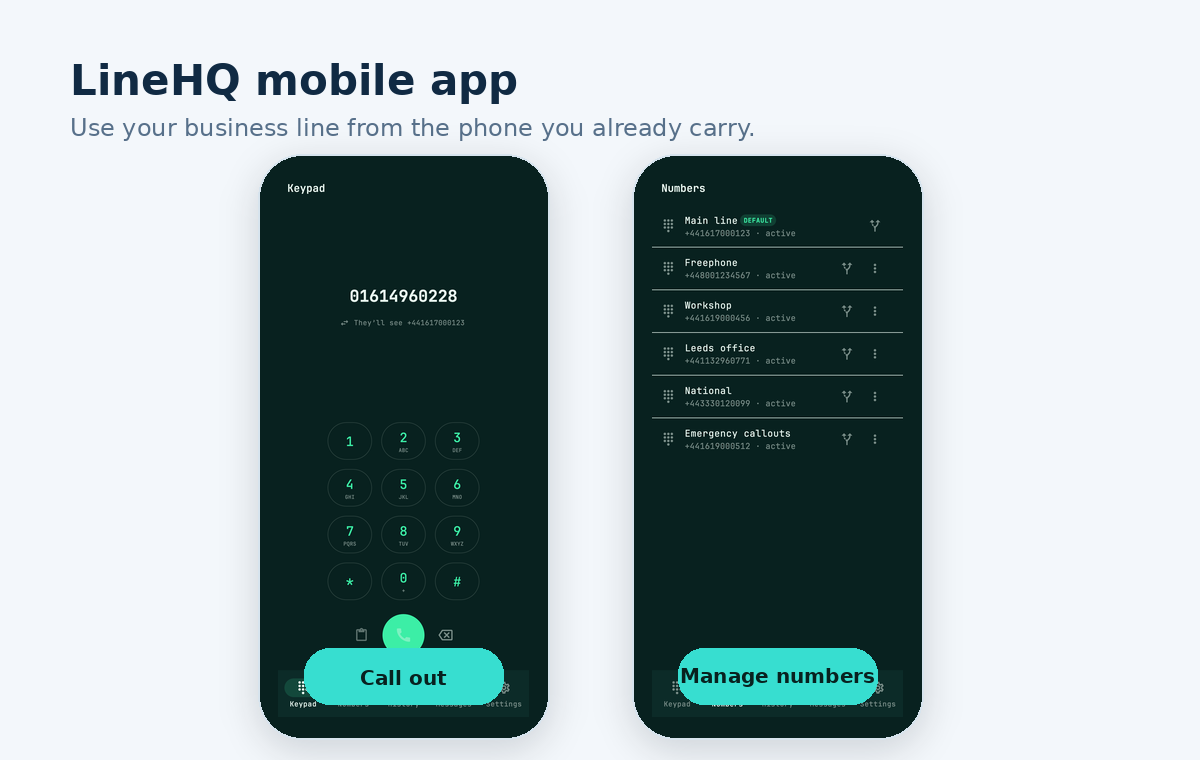
This route suits people who do not want another piece of hardware on the desk. It also works well if you move between sites, answer calls while travelling, or need your business line on the same phone you already carry.
Option 2: bring your own desk phone or VoIP app
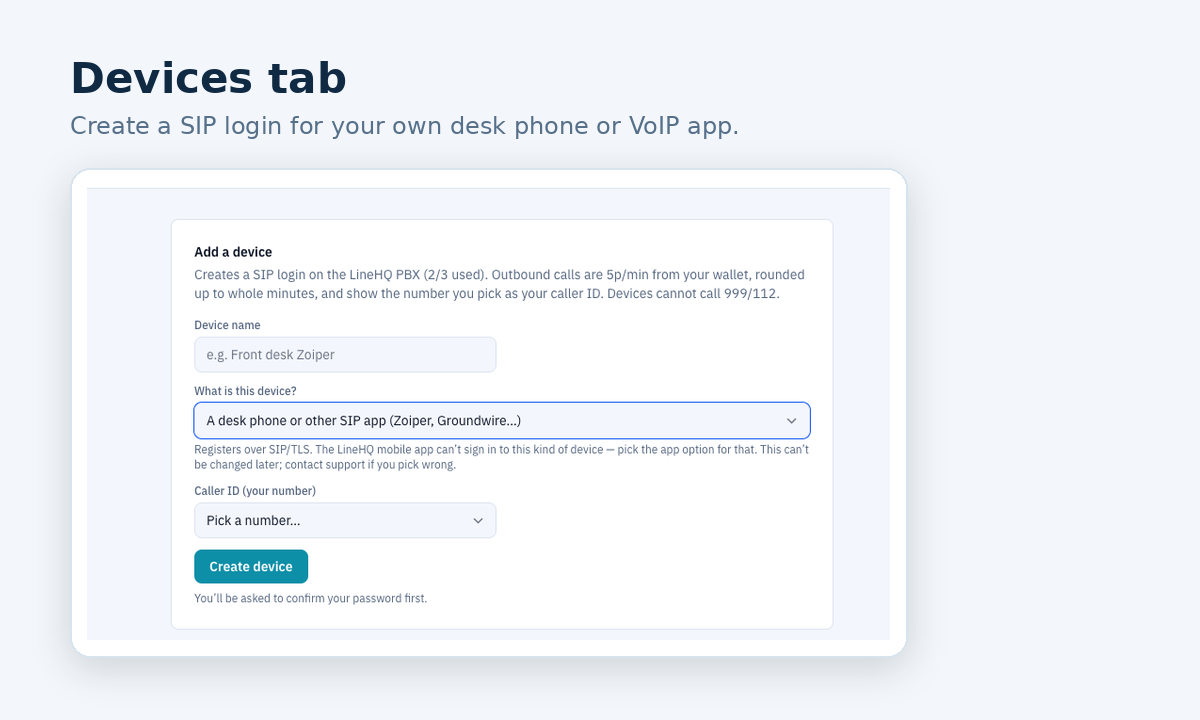
If you prefer a physical handset, you can use the Devices tab in your LineHQ account. This creates a SIP login that can be added to a compatible phone or SIP app.
That means you can buy your own Yealink, Grandstream, Fanvil or similar SIP handset, or use a VoIP app such as Zoiper or Groundwire. You own the device, so you are not paying monthly equipment rental just to keep a handset on the desk.
How the Devices tab works
When Devices is enabled on your account, the setup is straightforward:
- Open your LineHQ dashboard and go to Devices.
- Choose Add a device.
- Give the device a clear name, such as "Office Yealink" or "Front desk Zoiper".
- Choose whether it is the LineHQ mobile app or a desk phone/other SIP app.
- Pick the LineHQ number you want to show as caller ID when outbound calling is enabled.
- Confirm your password, then save the SIP username, password and server details shown on screen.
- Enter those details into your handset or VoIP app, then make a test call.
The SIP password is shown once for security. If you lose it later, revoke the device and create a new one.
Why owning the device can be better
Buying your own handset is not right for everyone, but it gives you more control. You can choose the brand, choose the model, replace it when you want, and move it between providers if it supports standard SIP settings.
For many small businesses, that is cleaner than renting hardware. You avoid a long equipment tie-in, you are not paying monthly rental for a phone you could have bought outright, and you can start small with one device before adding more.
What to check before buying a phone
Before buying a Yealink or any other desk phone, check that it is unlocked and supports standard SIP account settings. Avoid handsets that are locked to one provider, because they may not let you add your own SIP details.
Also think about how the phone will connect. Some desk phones need Ethernet and power, while others support WiFi or power over Ethernet. A wired office phone is usually more reliable than a cheap WiFi handset, especially if it will be used all day.
One important safety note: LineHQ devices are not for emergency calling and cannot call 999/112. Keep a normal mobile or landline available for emergencies.
Costs and contracts
The point of a DIY setup is not only lower cost. It is flexibility. You can use LineHQ for the number, routing, voicemail, recordings, call history and billing, while choosing your own device setup.
Outbound calls from enabled devices use Professional Calling: access is included on Mobile, Reception and Scale with no separate access fee, and Pay As You Go is not self-serve. Outbound calls are charged from your wallet at 5p/min. The device itself is yours, so the phone system stays easier to manage without a separate long rental agreement for equipment.
Which route should you choose?
| Setup | Best for | What you need |
|---|---|---|
| LineHQ app | Mobile workers, owners, small teams and anyone who wants a quick setup | An Android smartphone and the LineHQ app from Google Play |
| Your own desk phone | Offices, reception desks, workshops and fixed workstations | An unlocked SIP handset such as Yealink, Grandstream or Fanvil |
| Another VoIP app | People who already use Zoiper, Groundwire or another softphone | A compatible SIP app and the device credentials from LineHQ |
Common questions
Can I use my own Yealink phone with LineHQ?
Yes, as long as the phone is unlocked and supports standard SIP account settings. You create a device in LineHQ, then add the SIP username, password and server details to the handset.
Do I have to rent a desk phone?
No. You can buy your own compatible phone or use a VoIP app. That lets you own the equipment instead of paying a monthly rental for the handset.
Can I use the LineHQ app instead of a desk phone?
Yes. The LineHQ Android app is available from Google Play now. It is the easier route if you want calls, numbers, history and messages on your mobile. iOS is not public yet.
Can the device show my LineHQ number as caller ID?
Yes, when outbound calling is enabled and the number is eligible to be presented as caller ID. You choose the caller ID number while creating or managing the device.
Can LineHQ devices call 999 or 112?
No. LineHQ devices cannot call 999/112. Keep a normal mobile or landline available for emergency calls.
Start with the setup that fits how you work
If you want the fastest route, start with the LineHQ Android app from Google Play. If you prefer a physical handset, open the Devices tab and connect your own SIP phone or VoIP app.
Either way, LineHQ gives you a UK business number, call routing, voicemail, call history and simple prepaid billing without forcing you into rented equipment. See LineHQ pricing, explore virtual phone numbers, or create an account to start building your own phone setup.